How to Limit How Many Units of a Product Sell on Shopify (Without Changing Inventory)
Cap how many units of a product sell on Shopify for a limited drop: native inventory options, their limits, and capping sales without touching stock.
On this page
- What "limit how many units sell" actually means
- Option 1: use the inventory count as the cap
- Option 2: let it sell out and control what happens next
- Option 3: schedule availability
- Option 4: different stock for different countries
- A quick note on B2B quantity rules
- When an app is the better fit
- How SmartStockCap handles it
- Picking the right approach
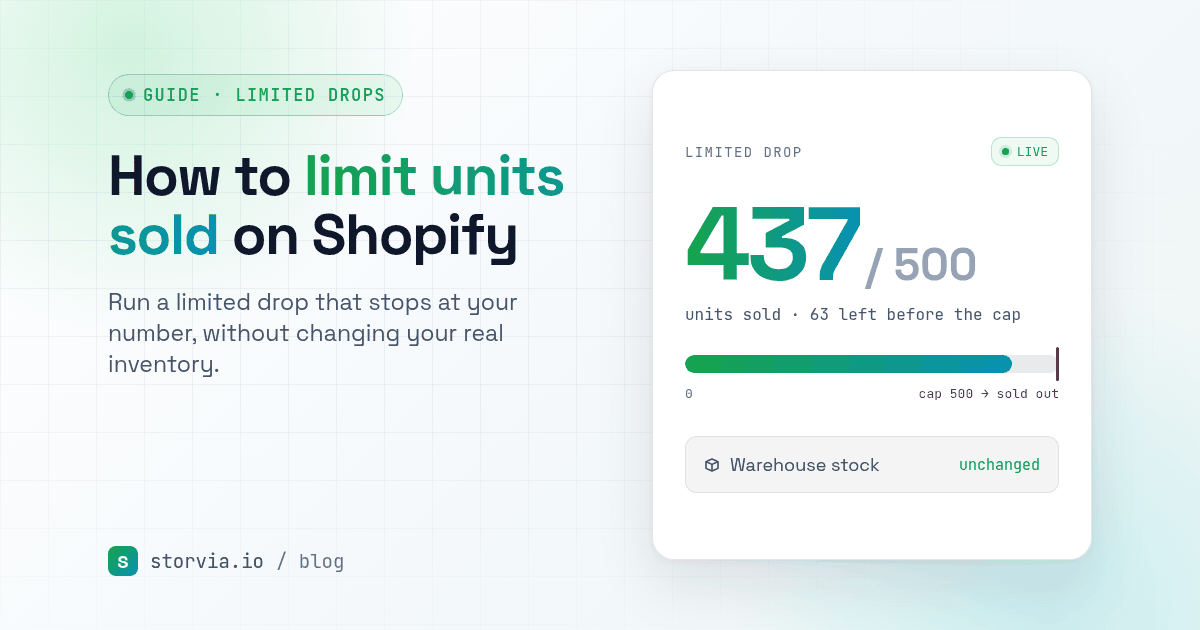
Say you have 200 units of a new hoodie. You want 120 to sell online during launch week, 50 for a pop-up market next month, and 30 set aside for wholesale. Shopify will happily sell all 200 online, because the only number it checks before taking an order is inventory.
This guide covers what Shopify gives you out of the box for capping sales, where each option stops working, and when an app makes more sense.
What "limit how many units sell" actually means
Before picking a method, be clear about which limit you want. People use the same words for three different things:
- A total cap on a product. "Sell 120 hoodies online, then stop." This is about the drop as a whole.
- A per-order limit. "No more than 2 per order." This is about one cart.
- A per-customer limit. "Each customer can buy 1, ever." This is about one buyer across orders.
They are solved in different ways. This post is about the first one: capping the total number of units a product sells online. If you need per-order or per-customer limits, the native options and the app below won't do that for you, and you should look for a tool built for it.
Option 1: use the inventory count as the cap
The simplest approach is to set the product's available quantity to the number you want to sell. In the product's Inventory section, keep Track quantity on and make sure Continue selling when out of stock is off. When the count hits zero, Shopify stops accepting orders and most themes show a Sold out badge.
This works well when the number you want to sell online is the number you physically have. It gets messy when it isn't:
- Your stock count stops being true. If you have 200 units and enter 120, your admin now says you own 120. Anyone looking at inventory reports, reorder points or a connected warehouse system sees the wrong number.
- You have to put the rest back by hand. After the drop, someone needs to remember to add the 80 units back, at the right location, without double-counting returns that came in meanwhile.
- Other sales channels share the same pool. Draft orders, POS and wholesale orders all draw from that same lowered number. Selling 10 at a market can quietly eat into your online drop, or the other way round.
- Variants make it harder. Inventory is tracked per variant. If you want "120 hoodies total, any size", you have to guess a split across sizes up front, and you'll end up with small sold out while XL sits there.
For a one-off, online-only drop, this is fine. Beyond that, the workarounds pile up.
Option 2: let it sell out and control what happens next
When a product reaches zero, what customers see depends on your theme and settings. Usually the product stays visible with a Sold out label and a disabled button. Some merchants prefer to hide sold out products from collections, which most themes support or which you can do by unpublishing the product.
This decides whether a sold out drop keeps collecting traffic and waitlist signups, or disappears. It doesn't help you stop at a number other than zero.
Option 3: schedule availability
Shopify lets you schedule when a product becomes available on your online store, so a drop can go live at a set time without someone sitting at a laptop. That covers the start of a drop. There's no built-in way to have the product stop selling at a set time or after a set number of units, so ending a drop is still manual or tied to inventory hitting zero.
Option 4: different stock for different countries
This is where native options get thin. Shopify tracks inventory by location, not by market or country. You can decide which products are sold in which markets, and with several locations and shipping set up carefully you can steer certain countries to certain stock. But there's no simple setting for "Australia gets 30 of these, New Zealand gets 20, everyone else gets 50" from one pool of stock.
If you sell a limited run across a few countries and want each market to get a fair share, you usually end up with one of these:
- Duplicate products per country, which splits your reviews, URLs and reporting.
- Extra "virtual" locations just to hold a country's allocation.
- No split at all, so whichever country wakes up first buys the drop.
A quick note on B2B quantity rules
If you're on a plan with Shopify's B2B features, you'll see quantity rules (minimums, maximums and increments) on B2B catalogs. Those are per-order rules for wholesale buyers. They're useful, but they don't cap the total number of units a product sells to your regular online customers.
When an app is the better fit
If you've nodded along to two or more of these, the native route is probably costing you more time than it's worth:
- You want to stop online sales at a number that isn't your real stock level.
- You don't want to edit inventory before and after every drop.
- You want one cap across all variants, not a guessed split per size.
- You want different limits per country from the same stock.
- You want the cap to start (and stop) on a schedule.
How SmartStockCap handles it
I build Shopify apps under the name Storvia Apps, and SmartStockCap is the one I made for exactly this problem, so take this section with that in mind. Here's what it does and, just as important, what it doesn't:
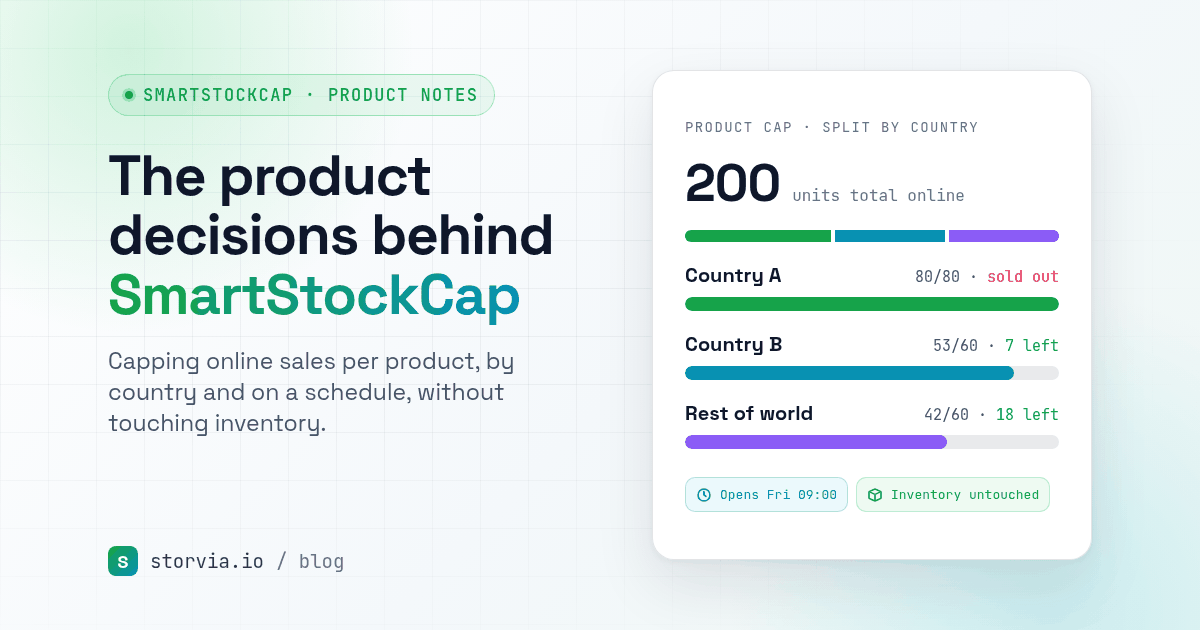
- It caps the total units sold online per product. You set a number, for example 120, and online sales of that product stop once 120 units have sold.
- It can split the cap by country. One cap can be divided between markets, such as Australia 30, New Zealand 20 and the rest of the world 50.
- Caps can be scheduled. You can set when a cap starts and ends, which fits the way drops actually run.
- It doesn't change your inventory. Your stock count stays as it is, so the 80 units you held back are still there for the market stall, wholesale or gifts, and your reports keep telling the truth.

What it isn't: SmartStockCap is not a per-order or per-customer limit. It won't stop one person buying five, and it won't stop the same customer coming back for a second order. If that's your main worry, for example resellers buying out a drop, you need a purchase-limit tool alongside it or instead of it.
Picking the right approach
A rough way to decide:
- One product, online only, real stock equals the drop size: use inventory and turn off "Continue selling when out of stock".
- You need the drop to go live at a set time: schedule the product's availability, then let inventory or a cap stop it.
- The online number is smaller than your real stock, you sell in several countries, or you're tired of editing inventory around every launch: use a cap that sits on top of inventory instead of replacing it.
- You need "max 2 per customer": that's a different tool. Don't try to force inventory or a total cap to do it.
Whatever you pick, test it before the drop: place a test order, check what the product page shows at the limit, and try a second country if you split by market.
If a total cap per product, by country and on a schedule, sounds like what you need, SmartStockCap is on the Shopify App Store. For why it works this way, read the product decisions behind SmartStockCap.